Project Online Has Retired. What the Migration Actually Involved.
Karthikraja
Founder, Increplus Technologies
Microsoft retired Project Online on 30 September 2026. There is no grace period and no read-only window — once the service stops, the projects and the data inside it go with it. We spent the months before that deadline moving an organisation onto Project Server Subscription Edition. This is what the work actually involved, written for whoever has to do it next.
Where This Leaves You
If you already moved, this article is a sanity check against what you built. If you have not, your position is harder than it was last week, but it is not hopeless — and the shape of the work has not changed. What has changed is that you can no longer log in and look at the source system while you plan. That single fact reorders everything below.
Organisations leaving Project Online had three realistic destinations: Project Server Subscription Edition on their own infrastructure, Microsoft Planner, or a different platform entirely. For an organisation with mature schedules, established custom fields and years of baseline data, Project Server Subscription Edition is usually the path of least disruption. It keeps the same scheduling engine, the same client application and the same way of working.
It does not keep the same environment. That distinction is where most migration plans go wrong.
The Thing Most People Got Wrong
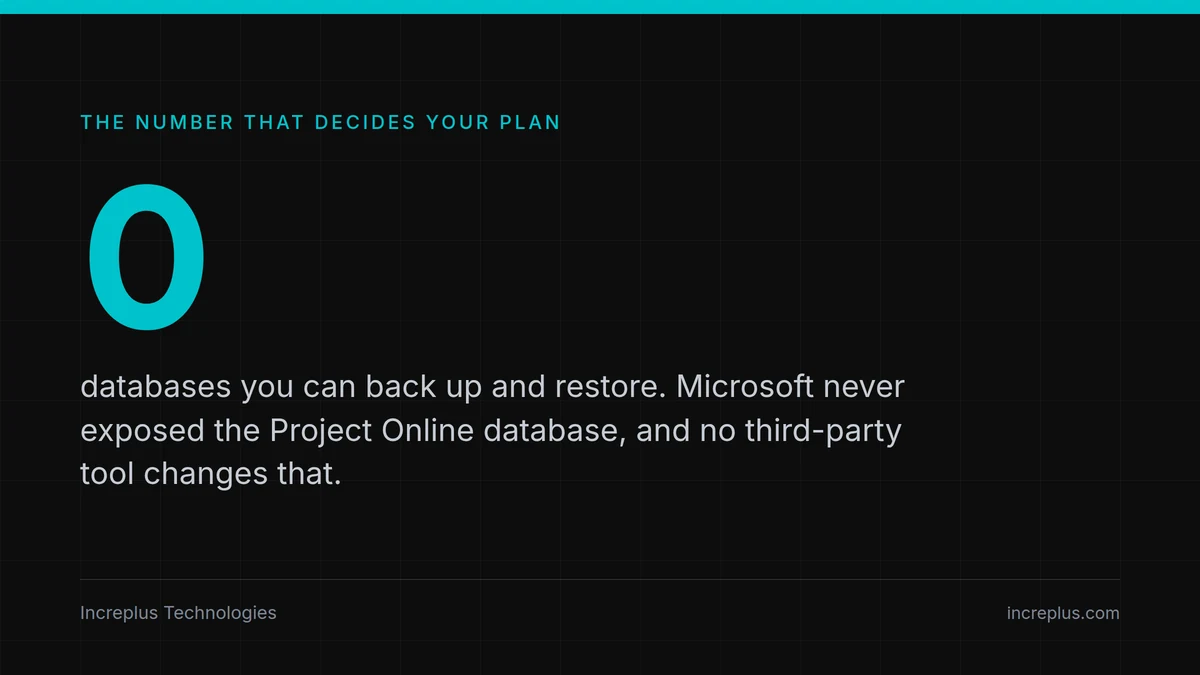
There is no database migration path out of Project Online. You cannot back up a database and restore it into the new environment. Microsoft never exposed the underlying database, and no third-party tool changes that.
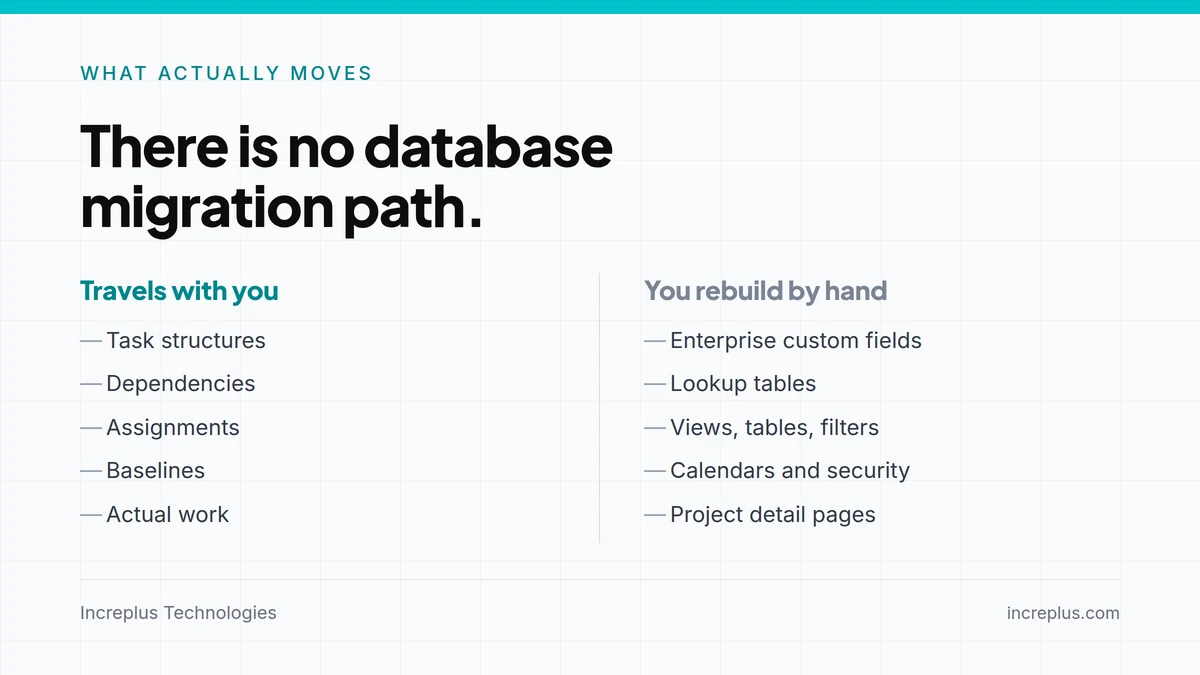
What moves is the schedules — task structures, dependencies, assignments, baselines and actual work. Everything else is rebuilt in the target environment by hand: enterprise custom fields, lookup tables, views, tables, filters, groups, calendars, security categories and project detail pages.
So it was never a migration in the usual sense. It was a reconstruction, with the schedules moved in afterwards.
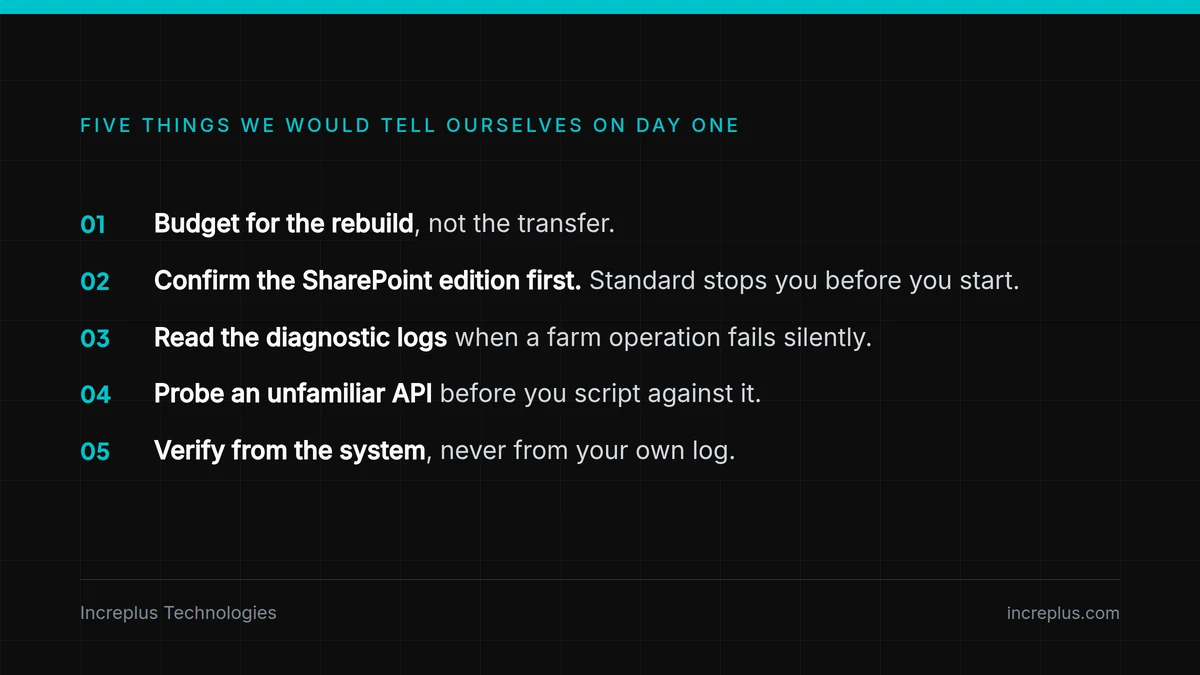
This matters because it changes where the effort sits. Plans that assumed "we will move it over a weekend" failed — not because the transfer is hard, but because the rebuild was never budgeted for.
If you are scoping this now, price the reconstruction first and treat the schedule transfer as a rounding error. That single reordering is the difference between a plan that holds and one that slips.
What We Actually Did
1. Inventoried the source environment, read-only
Before touching anything, we connected to the Project Online instance with PowerShell and exported everything to file: every project with its owner, dates, total work and duration; every enterprise custom field with its type and lookup table; every resource with its account and department.
Two rules from day one. The source system is production, so every connection to it is read-only. And everything is written to a file — because later you will need to prove that a value in the new system matches the old one, and memory is not evidence.
2. Extracted the schedules
Project Professional, connected to the source, opens each enterprise project and saves a local copy. That file carries the real content of the plan. We automated the loop rather than doing it by hand, because repetition is where mistakes enter.
One practical note: Project Professional leaks memory across bulk open and close cycles. Our first run failed around the twenty-second project. Restarting the application every fifteen projects solved it.
3. Built the target environment
Windows Server, SQL Server, SharePoint Server Subscription Edition, then the Project Server service application and a PWA instance.
Confirm this before planning anything else: Project Server Subscription Edition requires the Enterprise edition of SharePoint Server Subscription Edition. It installs from the same media but cannot be enabled on Standard.
4. Rebuilt the configuration
The long stretch, and there is no shortcut. Working from the exported inventory, we recreated every enterprise custom field and lookup table, every view, table, filter and group, the enterprise calendars, the security groups and categories, and the project detail pages.
For the views and groups that live inside individual schedules rather than in the web app, we scripted Project’s Organizer rather than clicking through it dozens of times.
5. Imported and published
Each exported file is opened against the new environment, saved as an enterprise project, and published. Master projects are rebuilt by inserting their subprojects in order. Then the custom field values that identify each project are restored.
6. Licensed and activated
Project Server must be licensed and activated on the farm before the web app works properly. Normally a one-minute step. Ours was not — see below.
7. Verified against the source
We compared total work, duration, start and finish for every project across both environments and flagged the differences. Where they matched, we could say so with evidence rather than assertion.
8. Cut over
Certificate issued and installed, HTTPS configured, secure URL published, full backup taken. Then the unglamorous but essential part: check in everything that was checked out.
What Went Wrong, and What It Taught Us
A licence conversion that failed for no visible reason
The activation step failed repeatedly with an unhelpful message. The real cause was in the server’s diagnostic logs: a stale one-time timer job from an earlier attempt was still present, and every new attempt collided with it. Removing it and re-running worked immediately.
The lesson: when a farm-level operation fails without explanation, read the diagnostic logs before trying anything else. The real error is almost always there, and almost never on screen.
A custom field that silently discarded every value
Plain text fields accept a string. Lookup-backed fields need an array — and if you pass a string, the call succeeds, reports success, and stores nothing. Our script logged "set = 1" against an empty field.
We caught it only because we had built a round-trip test: write the value, publish, then reconnect with a fresh connection and read back what the server actually stored.
A setting we were certain we had changed
A currency configuration appeared to update cleanly across dozens of projects. The logs said so. The server disagreed — and the client was right to push back. The property being written was not the setting that governs the behaviour; it accepted every write and changed nothing.
The most valuable lesson of the whole engagement: verify from the system, never from your own log. A script that reports success has proved only that the script ran.
If You Are Still on the Wrong Side of the Deadline
The service has stopped, so the read-only inventory step is gone. What you do next depends on what you kept.
- 1Find every local copy of a schedule that exists. Anything saved out of Project Professional, emailed to a stakeholder, or sitting in someone’s OneDrive is now a primary source. Collect them before they are tidied away.
- 2Check whether anyone exported reports before the shutdown. Project and resource listings, even as spreadsheets, will rebuild a large part of your custom field inventory.
- 3Rebuild the target environment anyway. The reconstruction work — custom fields, lookup tables, views, calendars, security — was always manual, and none of it depended on the source system still running.
- 4Accept that some history is gone, and decide deliberately what you re-enter. Baselines and actuals that exist only in the retired service cannot be recovered. Re-keying the current state of active projects is usually cheaper than trying to reconstruct the past.
- 5Get the decision documented. If leadership is going to learn that several years of baseline data is unrecoverable, they should learn it from you, with options attached, rather than from a project manager three weeks from now.
The Honest Summary
This migration is well-trodden. It is also more work than it looks, and most of that work sits in places the planning documents do not mention. The transfer is straightforward. The reconstruction, the environment-specific faults and the verification are where the time goes.
We finished before the deadline. The parts that nearly cost us were not the difficult ones — they were the three places where a system told us it had done something it had not. If you take one thing from this, take that.
Migrations like this sit alongside the cloud and infrastructure work we do day to day. If you want the wider picture of how we run environments after the migration is done, our services page covers it.
If you are working out what to do next — whether you migrated already, or the deadline has passed and you are assessing the damage — we are happy to talk it through. What transfers, what you rebuild, and what it realistically takes. No obligation, just a conversation with someone who has done it.
Book a Free Consultation